
How to Fix IPTV Buffering: 12 Proven Solutions (2026)
ZYMINEX Support Team
June 2, 2026
How to fix IPTV buffering starts with finding the weak point: your internet connection, your app buffer settings, your device processing power, or the provider server load. Most freezing is fixable in minutes. Start with the quick checks below, then work down to advanced fixes if the stream still stalls.

What Causes IPTV Buffering? Quick Diagnosis
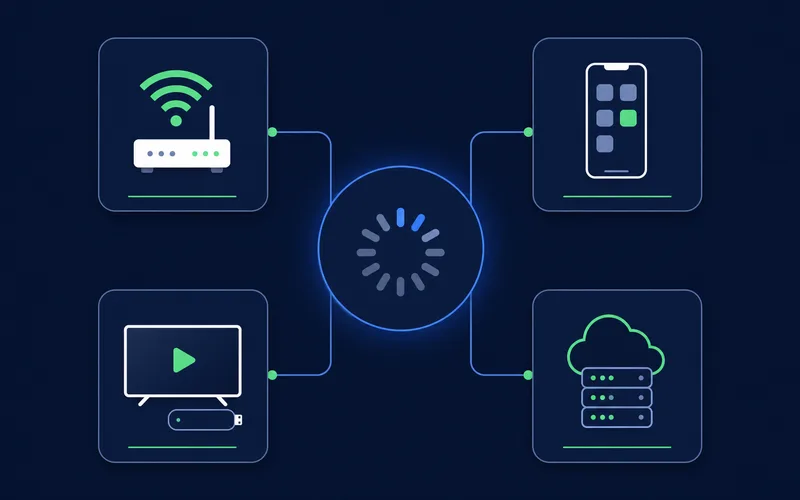
IPTV freezing usually falls into four buckets: network, app settings, device limits, or provider load. Use this table before changing every setting at once. If the issue appears only on one channel, only during live sports, or only on 4K streams, that clue matters.
| Symptom | Likely cause | First fix |
|---|---|---|
| Buffers on every channel | Internet speed or Wi-Fi | Run a speed test, then switch to Ethernet |
| Buffers only on 4K channels | Bandwidth or device power | Drop to 1080p or upgrade the device |
| Buffers only during live sports | Peak server load | Test another event time and contact the provider |
| Black screen with audio | Video decoder | Switch hardware to software decoder, or back again |
| Freezes after a few minutes | Small buffer or cache buildup | Increase buffer size and clear cache |
First, Run These 3 Quick Checks
- Run a speed test on the same device. Testing on your phone beside the router is not enough. Test on the Firestick, Android TV box, Smart TV, or phone that actually buffers.
- Restart the device and router. Unplug both for 30 seconds. This clears memory, stale connections, and overheated network gear.
- Close background apps. Older Firesticks and budget Android boxes can struggle when VPNs, launchers, and unused apps keep running.
12 Proven Fixes for IPTV Buffering
1. Increase your app buffer size
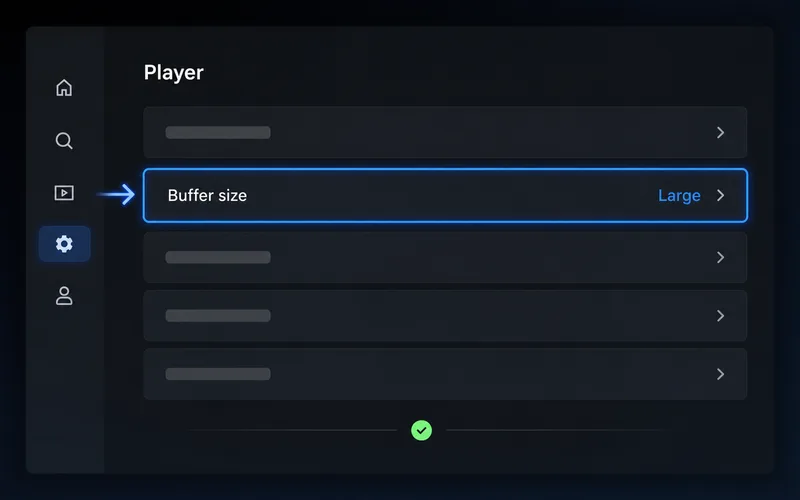
What it does: lets the IPTV app pre-load more video so short speed drops do not stop playback. In TiviMate, try Settings > Player > Buffer Size > Large or Very Large. In IPTV Smarters Pro, check Settings > Stream Format / Player Selection and player options, because available buffer controls vary by version and device.
2. Switch your DNS to Cloudflare or Google
What it does: changes the resolver your device uses to find stream hostnames. Cloudflare documents 1.1.1.1 as its public DNS resolver, and Google lists 8.8.8.8 and 8.8.4.4 for Google Public DNS. DNS can help with slow channel loading, EPG fetch issues, or bad ISP routing.
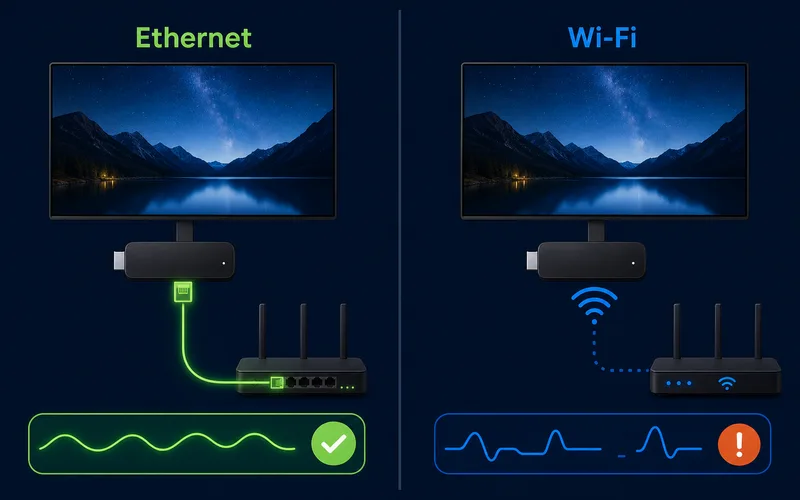
3. Use wired Ethernet instead of Wi-Fi
What it does: removes Wi-Fi interference, weak signal, and packet loss. For Firestick, use a compatible USB Ethernet adapter. For Android TV boxes, Nvidia Shield, and many Smart TVs, plug directly into the router or mesh node.
4. Clear your IPTV app cache, not data
Firestick path: Settings > Applications > Manage Installed Applications > IPTV app > Clear Cache. Android TV path: Settings > Apps > See all apps > IPTV app > Storage > Clear Cache. Do not choose Clear Data unless you are ready to re-enter your playlist or Xtream Codes login.
5. Switch the video decoder
In TiviMate, use Settings > Playback > Video decoder and test hardware versus software. In IPTV Smarters Pro, check Settings > Player Selection or switch to an external player. This often fixes black screen with audio, audio drift, or channel-specific playback bugs.
6. Lower stream quality when bandwidth is tight
Netflix speed guidance shows that HD and UHD need stable bandwidth, and IPTV live streams can spike higher than on-demand apps. Leave headroom for other devices.
| Use case | Minimum | Recommended |
|---|---|---|
| SD/HD single stream | 10 Mbps | 25 Mbps |
| 1080p multi-channel household | 25 Mbps | 35 Mbps |
| 4K IPTV | 35 Mbps | 50+ Mbps wired |
7. Change the output or stream format
In many IPTV apps, try Settings > Stream Format > MPEG-TS if HLS buffers, or switch back to HLS if MPEG-TS struggles on your network.
8. Use an external player
In IPTV Smarters Pro, try Settings > Player Selection > External Player. VLC and MX Player can handle streams differently and may solve decoder bugs.
9. Reduce devices competing for bandwidth
Pause cloud backups, game downloads, and 4K streams on other devices. If your router supports QoS, prioritize the TV, Firestick, or Android TV box.
10. Update or upgrade your device
Update your IPTV app, Fire OS, Android TV, or Smart TV firmware. If you use an older Firestick or a TV with very little storage, a Firestick 4K Max, Android TV box, or Nvidia Shield can make a visible difference.
11. Test whether your ISP is throttling
Test the same channel at different times, then compare playback with and without a reputable VPN. If IPTV buffers only without the VPN, your ISP route may be the bottleneck. A VPN does not make unlicensed streaming legal, and a slow VPN server can create buffering instead of solving it.
12. Switch to Xtream Codes instead of a raw M3U link
Xtream Codes gives compatible apps a cleaner account-based connection for live TV, VOD, and EPG. In TiviMate or IPTV Smarters Pro, choose Xtream Codes / Xtream Codes API, then enter the server URL, username, and password from your provider.
App-Specific Settings: TiviMate vs IPTV Smarters
| Setting | TiviMate | IPTV Smarters Pro |
|---|---|---|
| Buffer | Settings > Player > Buffer Size > Large | Use player settings where available; otherwise test external player |
| Decoder | Settings > Playback > Video decoder | Settings > Player Selection |
| Connection type | Add playlist > Xtream Codes | Login with Xtream Codes API |
| Cache cleanup | Use device app settings | Use device app settings |
When Buffering Is Not Your Fault
If every local fix works for other apps but IPTV still freezes only during major matches, PPV events, or weekend peak hours, the bottleneck may be provider-side server load. No buffer setting can fully compensate for overloaded or poorly routed source servers.
This is where provider quality matters. If you have already tested Ethernet, DNS, cache, decoder, stream format, and device performance, try a provider with more stable infrastructure. ZYMINEX free trial lets you test live channels on your own device before choosing a plan.
Frequently Asked Questions
Why does my IPTV keep buffering even with fast internet?
Headline speed is only one factor. Weak Wi-Fi, high latency, packet loss, overloaded apps, old devices, ISP routing, and provider-side load can all cause freezing even when a speed test looks good.
What internet speed do I need for IPTV and 4K IPTV?
For one HD stream, aim for at least 10 to 25 Mbps on the streaming device. For 4K IPTV, aim for 35 Mbps minimum and 50 Mbps or more on Ethernet so bitrate spikes do not cause stalls.
Does a VPN stop IPTV buffering?
Sometimes. A VPN can help when your ISP route is poor or throttled, but it can hurt performance if the VPN server is far away or congested. Test with and without it.
Conclusion
Most IPTV buffering is caused by network stability, app settings, or device limits. Work through the fixes in order: speed test, restart, Ethernet, cache, buffer size, decoder, stream format, and connection type. If everything checks out and streams still fail only at peak times, the issue may be provider-side.
For the next step, use our IPTV troubleshooting hub, learn how to set up IPTV on Firestick, compare what matters when choosing a reliable IPTV service, or review IPTV legality explained. When you are ready to test a stable service on your own device, start a ZYMINEX free trial or view plans.
Test ZYMINEX IPTV on Your Device
Try the service before choosing a plan. Get full access for 24 hours, then compare the plan options when you are ready.